Guide
How to connect to your Wardogs server with RCON
Everything you need to control your Wardogs server from Windows: where to find the RCON address, port and password, how to add the server, and what to do when it does not connect.
Updated · 2 minute read
What you need
- A Wardogs server you run, self-hosted or rented
- Its RCON address and port
- Its RCON password, from ServerSettings.ini
- A Windows 10 or 11 PC (64-bit)
Connect your server, step by step
-
1
Find your RCON address and port
If you rent your server, open your host's panel: it shows the server's IP address and the RCON port (on BisectHosting, the panel's IP and port). If you host it yourself, use your server's public IP address and the RCON port from its config, and make sure that port is open in your firewall and forwarded on your router.
-
2
Find your RCON password
The RCON password is set in ServerSettings.ini on your server. On a rented server you can usually open that file from the host's panel. Treat it like an admin password: anyone with it can kick, ban and change your server.
-
3
Download Wardogs Monitor
Download the free 14-day trial for Windows 10 or 11 and start it. No card or account is needed.
-
4
Add your server
Click Add server, give it a name, and enter the address, port and RCON password. Pasting the address with the port, like 165.217.136.57:9001, fills in the port for you. The password is encrypted for your Windows account and only ever sent to your server.
-
5
Check that it is live
Within seconds the server card shows Online with the map, players and score race. Open it to see the overview, players, match, rotation, bans and settings.
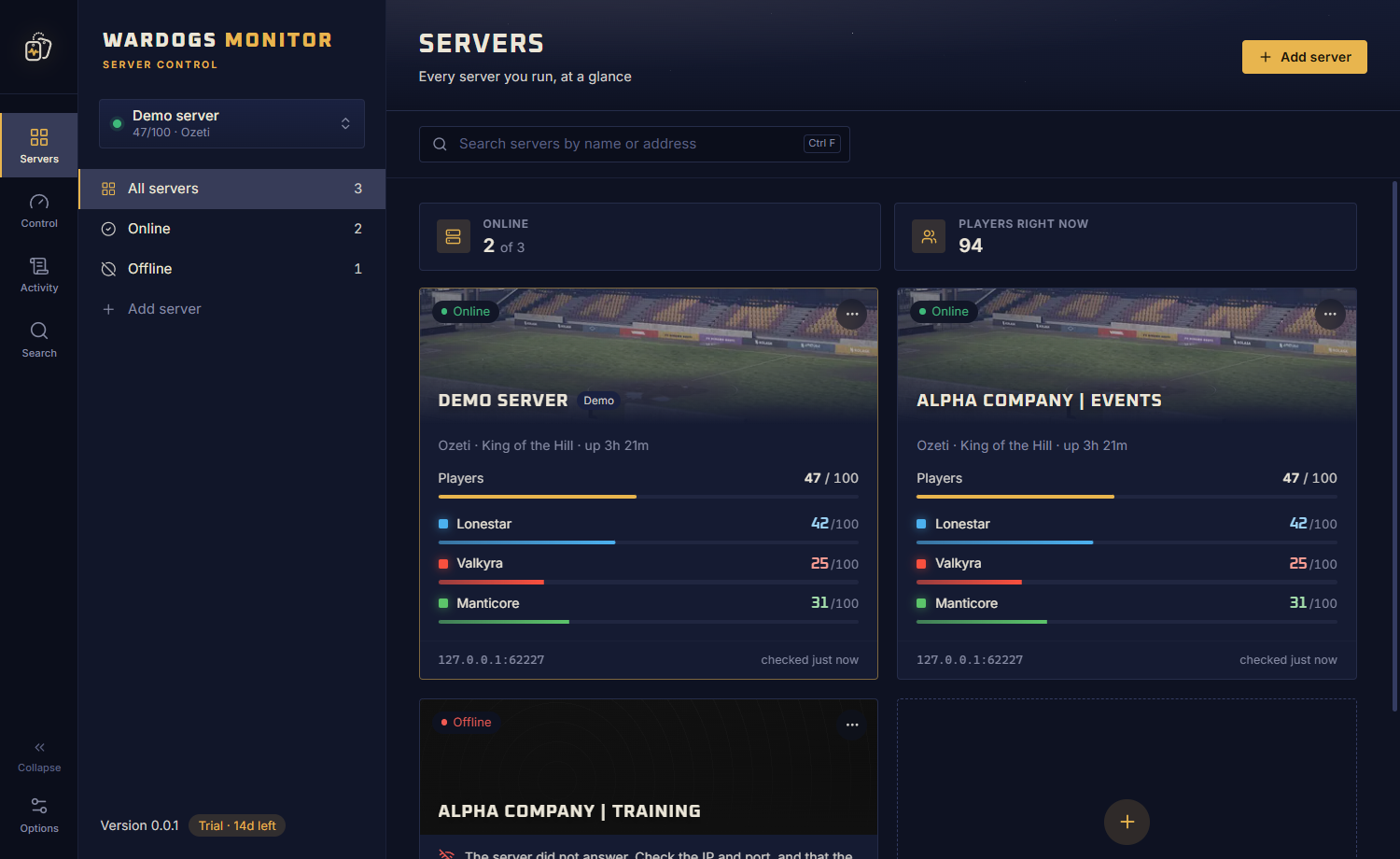
If it does not connect
The app tells you exactly what went wrong. These are the messages you may see, and what to do about each:
- “The server did not answer. Check the IP and port, and that the server is running.”
- The app could not reach the server at that address and port. Check you used the RCON port (not the game port), that the server is running, and, if you host it yourself, that the port is open in the firewall and forwarded on your router.
- “The server refused the RCON password.”
- The address is right but the password is not. Copy it again from ServerSettings.ini, without spaces before or after it. If you changed it, restart the server so it takes effect.
- “The server answered with something that is not a Wardogs RCON response.”
- Something else answers on that port, often a web panel or the game port. Check the port number in your host's panel.
What you can do next
Once connected, you can kick, ban and message players, restart or change the match, edit the rotation and server settings, and get a notice when the server goes down. See what the Wardogs RCON tool can do, or link your servers to a shared ban list.